Completing your Timesheet - Access
A guide to submitting timesheets using the Cypad.
Important: Timesheets need to be started and finished in one session, returning to the timesheet will leave you unable to submit.
It's best to complete the timesheets for you and your staff on a Friday.
Contents
Section A - Submitting your own time sheet
Section B - Submitting a time sheet for a member of your Team
Section A - Submitting your own time sheet
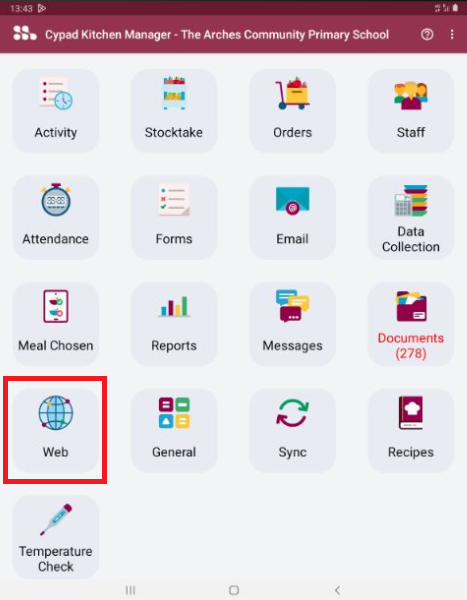
1. On the Cypad, once signed into Kitchen Manager, select "Web".
2. In "Web", select "Selima New Link".
2. In "Web", select "Selima New Link".
3. Once signed into access, select:
- People
- Self Service
- TimeSheets
- +Add Timesheet
4. In the pop out window, select the start date for the Timesheet.
5. Select "Add Row".
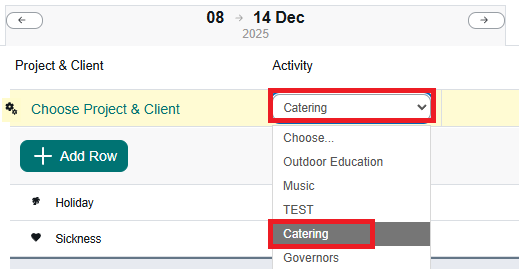
6. In the "Activity" drop down box, select "Catering".
7. For each day, input hours worked. Tap into a box, input hours in decimal forms e.g. 7hours 15 minutes = 7.25.
Decimals of an hour:
- 15 minutes - 0.25
- 30 Minutes - 0.5
- 45 Minutes - 0.75
8. To input overtime
a. Select the down arrow next to the hours box.
b. Enter a reason in the notes box.
c. Select the overtime type from the drop down.
d. Input the overtime in decimal form (this can be calculated using the same process in step 7)
e. Select "Add".
9. Check the total column, this will show regular hours worked on top and any overtime (number ending in OT) on the bottom.
10. IMPORTANT: Select save on the right hand side, regular working hours save automatically but overtime hours do not. You must click save to add these hours.
11. Once all hours are input for the week, select "Submit" in the top right.
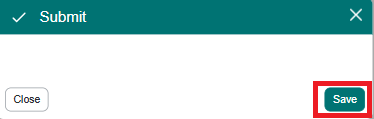
12. in the Pop-out window, select "Save" in the bottom right.
Section B - Submitting a time sheet for a member of your Team
1. On the Cypad, once signed into Kitchen Manager, select "Web".
2. In "Web", select "Selima New Link".
3. Once signed into access, select:
- People
- My Team
- My Team
- The team member
4. From near the top right, select "Employment" then select "Timesheets" from the right menu.
7. Select "Add Timesheet" from near the top right.
6. In the pop out window, select the start date.
7. Select "Add".
8. Select "Add Row".
9. In the "Activity" drop down box, select "Catering".
10. For each day, input hours worked. Tap into a box, input hours in decimal forms e.g. 7hours 15 minutes = 7.25.
Decimals of an hour:
- 15 minutes - 0.25
- 30 Minutes - 0.5
- 45 Minutes - 0.75
11. To input overtime
a. Select the down arrow next to the hours box.
b. Enter a reason in the notes box.
c. Select the overtime type from the drop down.
d. Input the overtime in decimal form (this can be calculated using the same process in step 10)
e. Select "Add".
12. Check the total column, this will show regular hours worked on top and any overtime (number ending in OT) on the bottom.
13. IMPORTANT: Select save on the right hand side, regular working hours save automatically but overtime hours do not. You must click save to add these hours.
14. Once all hours are input for the week, select "Submit" in the top right.
15. in the Pop-out window, select "Save" in the bottom right.
16. The status should now show as approved.
16. The status should now show as approved.
Related Articles
Cypad - Completing Training on LMS
A guide on how to complete the training modules on the new LMS training platform. 1. Sign into the tablet. 2. Open Kitchen Manager. 3. Open the Web section. 4. Select LMS. 4. Enter your Username and Password. 5. Select LOGIN. 5. Once logged in, ...Cypad Kitchen Manager - Completing Stock take using the tablet.
This is a guide on how to complete a stock take using the Cypad, including some tips to speed up some of the repetitive tasks. Note: Stock take can be started on one day and finished on another 1. Sign into the tablet. 2. Open Kitchen Manager 3. ...Using the Edsential Help Centre
Help centre is the place for all your IT questions. From here you can access our IT guides, check up on open/historical tickets and raise new tickets if required. Getting started How to Access the Help Centre Click this link, Edsential Community ...